

Appearance
Match the widget to your brand, with a live preview as you edit.
The agent's Appearance tab controls how the widget looks on your site. The preview on the right updates as you make changes. Switch it between Launcher, Input, Chat and Walkthrough to check each part of the widget, and use Dark to see it in dark mode.
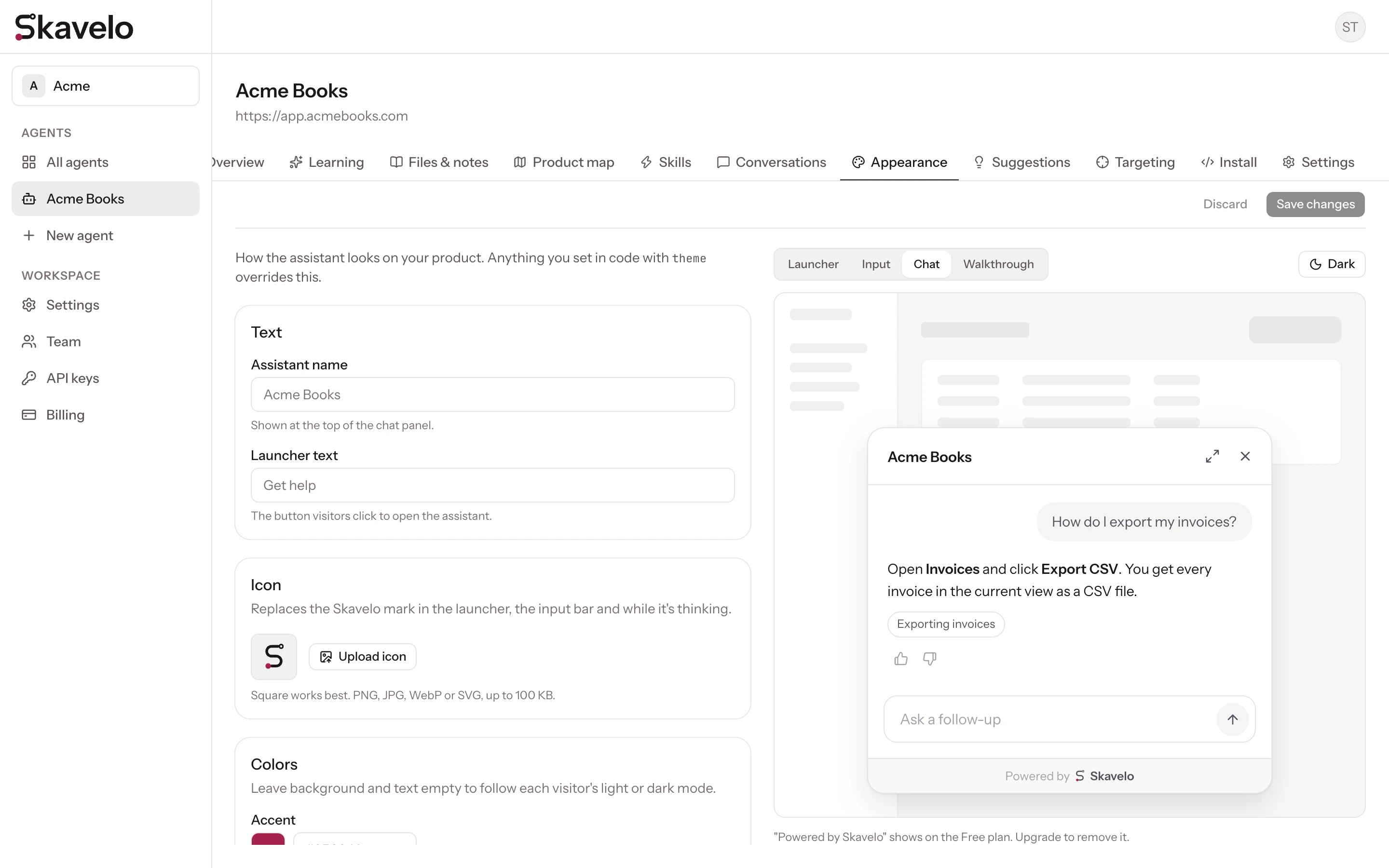
Text
| Setting | What it changes | Limit |
|---|---|---|
| Assistant name | The title at the top of the chat panel. Defaults to your agent's name. | 40 characters |
| Launcher text | The label on the button visitors click to open the widget. Defaults to "Get help". | 30 characters |
Icon
Replace the Skavelo mark with your own icon in the launcher, the input bar and while the widget is thinking. Use a square PNG, JPG, WebP or SVG image of up to 100 KB.
Colors
| Setting | What it changes |
|---|---|
| Accent | Highlights, the launcher glow and the walkthrough step marker |
| Panel background | The background of the chat panel |
| Text | The text color in the chat panel |
Leave Panel background and Text set to Automatic to follow each visitor's light or dark mode setting. If you choose both, the page warns you when the contrast is too low to read comfortably.
Highlight
How walkthroughs mark the button to click. See Highlight styles.
Position
Place the widget at the Bottom left, Bottom center or Bottom right of the screen.
Saving
Click Save changes in the bar below the tabs. Live sites pick up the new appearance on their next page load. Discard returns to your last saved settings.
Settings in code take priority
If your install snippet passes a theme to Skavelo.init, those values override what you set here. See the SDK reference.
Skavelo branding
On the Free plan, the chat panel shows "Powered by Skavelo". Paid plans can remove it; see Plans and billing.
See it in action
Examples and answers to common questions are on the Appearance page on skavelo.com.